
Grok Imagine 2.0AI Image Generator & Editor

Generate, segment and edit images with Grok Imagine 2.0 Extended and Official modes in one workspace.

Workspace

3 Credits
Model

Inspirations

Editorial Portrait

Editorial Portrait

A cinematic portrait in soft natural light, 85mm lens look, subtle film grain, editorial style.

Product Poster

Product Poster

A premium product poster with dramatic spotlight, clean dark gradient background, high contrast.

History

No history yet. Generate your first task.

Restoring your workspace…

Grok Imagine 2.0, from a scene to a finished brief

Explore product photography, illustrated characters and cinematic places. Start with a real example, adapt its prompt, then choose the right image mode in the AI Studio workspace.

Choose a starting point. Make it yours in the workspace above.

  • Orange robot watering pink flowers in a vertical rooftop garden scene

    A rooftop garden companion

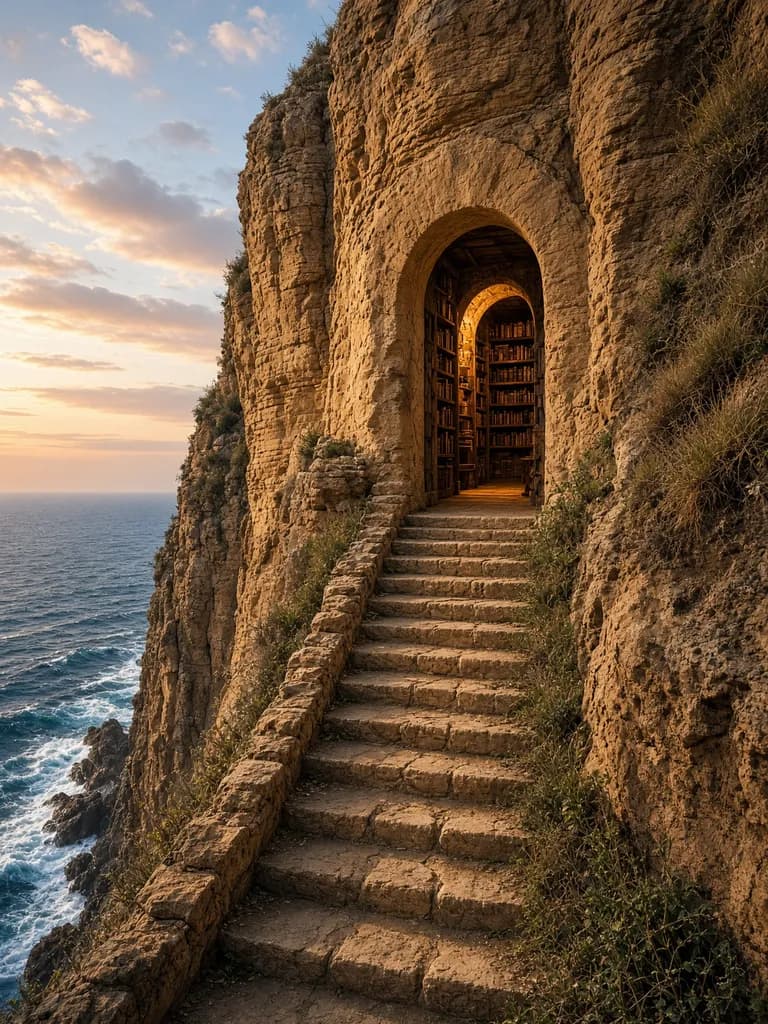
  • Stone stairway climbing to an arched cliffside library above the sea

    A library above the sea

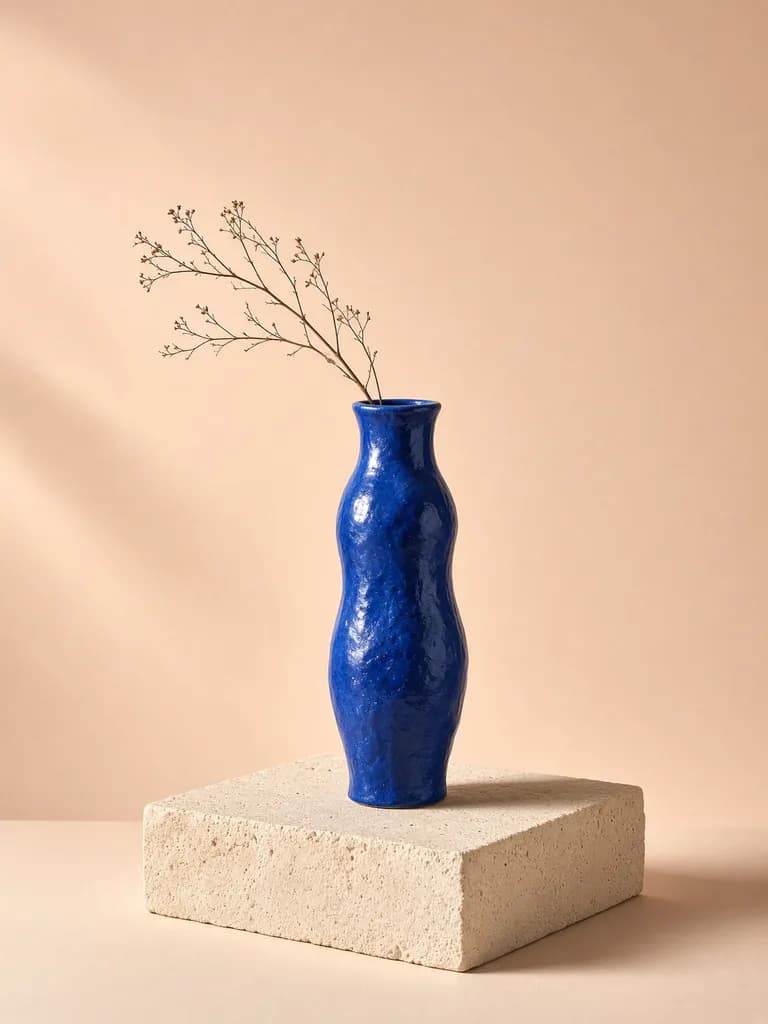
  • Cobalt ceramic vase and dried branch on a limestone pedestal

    Texture shaped by light

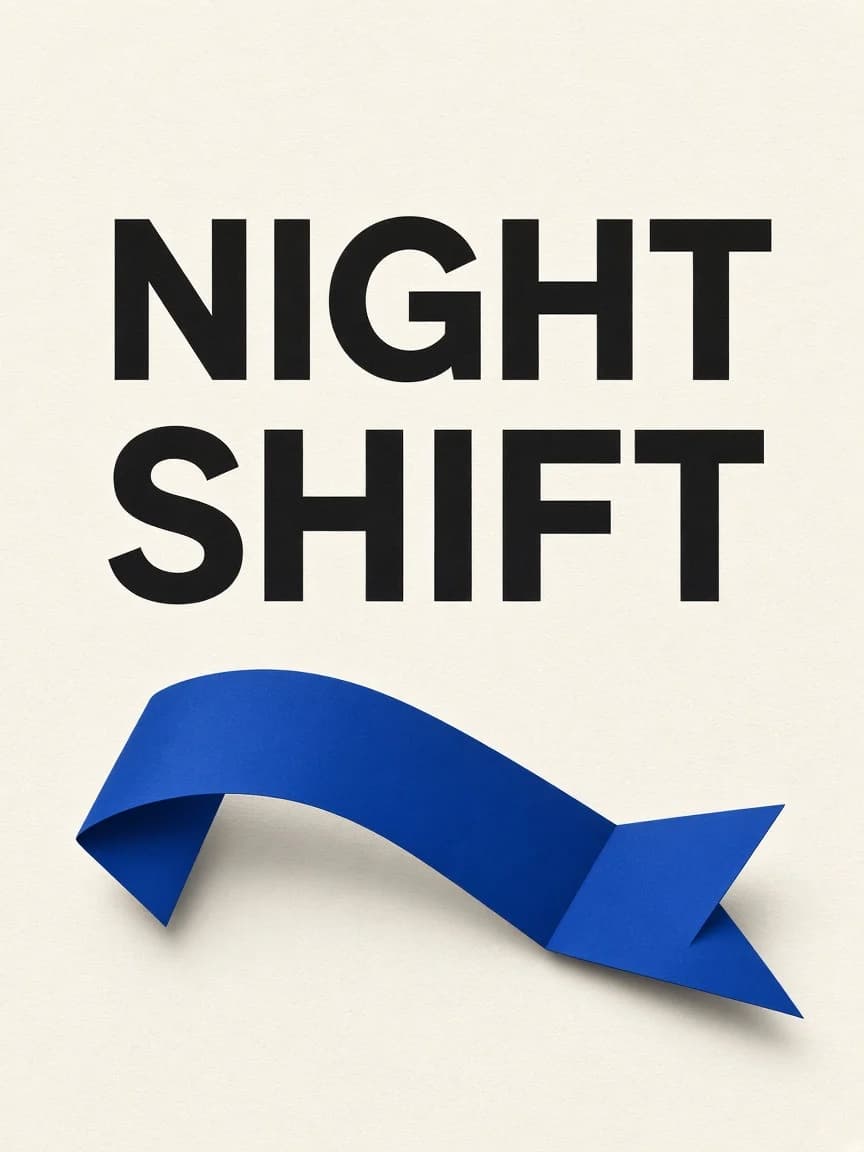
  • NIGHT SHIFT poster with bold black type and a cobalt folded-paper ribbon

    Two words, one clear hierarchy

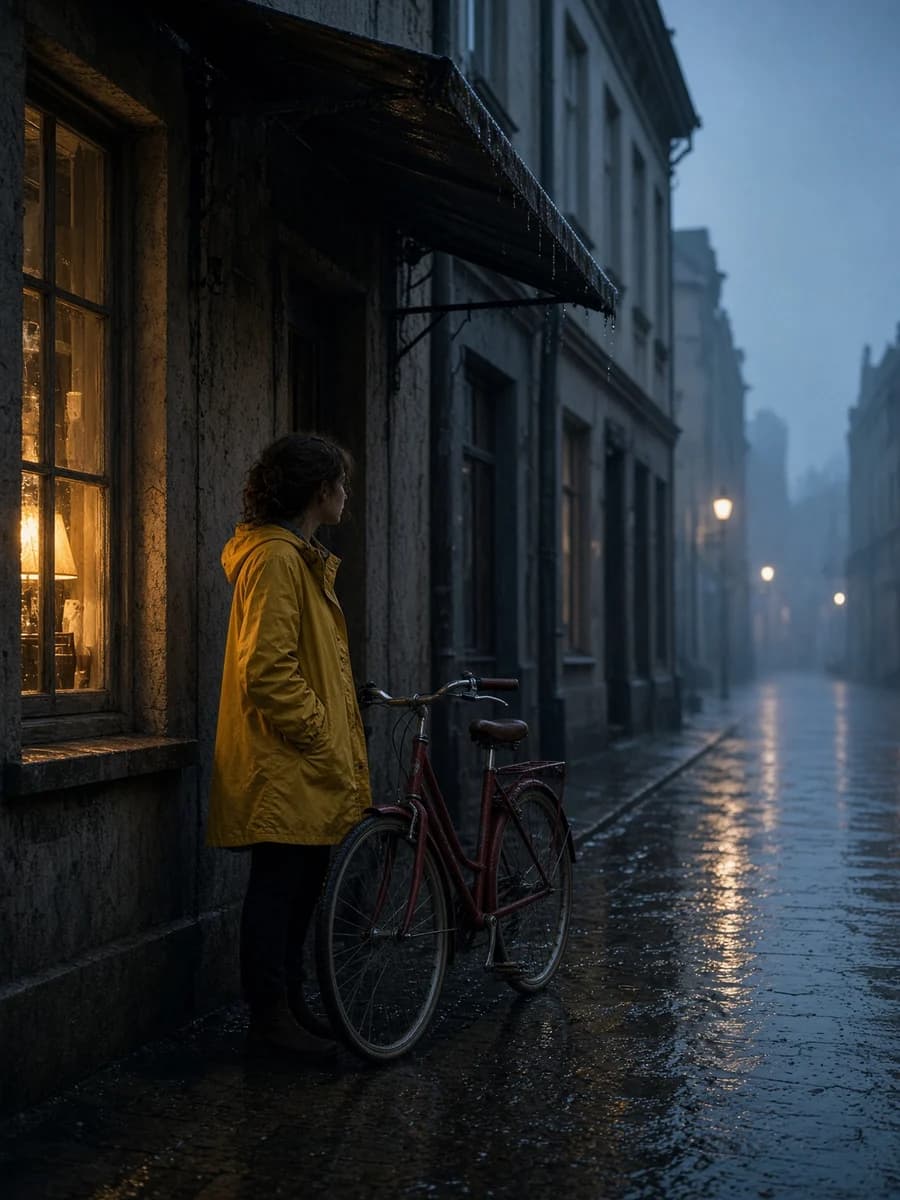
  • Cyclist in a yellow raincoat beside a red bicycle on a rainy blue-hour street

    A scene with cinematic light

Grok Imagine 2.0 at a glance

Grok image features and practical uses
FeatureIn this workspacePut it to work
Text to imageExtended or OfficialDescribe the subject, composition, materials and light.
Reference editingOfficial · up to 3 imagesName what should change and what should stay.
Framing & resolutionOfficial: 1K / 2K; Extended: aspect ratiosChoose the final format before refining details.
VariationsExtended: 1–12; Official: 1–10 imagesBegin with one image and review the quote.
Region editingSegment Image ID and a selectionPrepare the source before requesting a local change.

Grok Imagine 2.0 examples and prompts

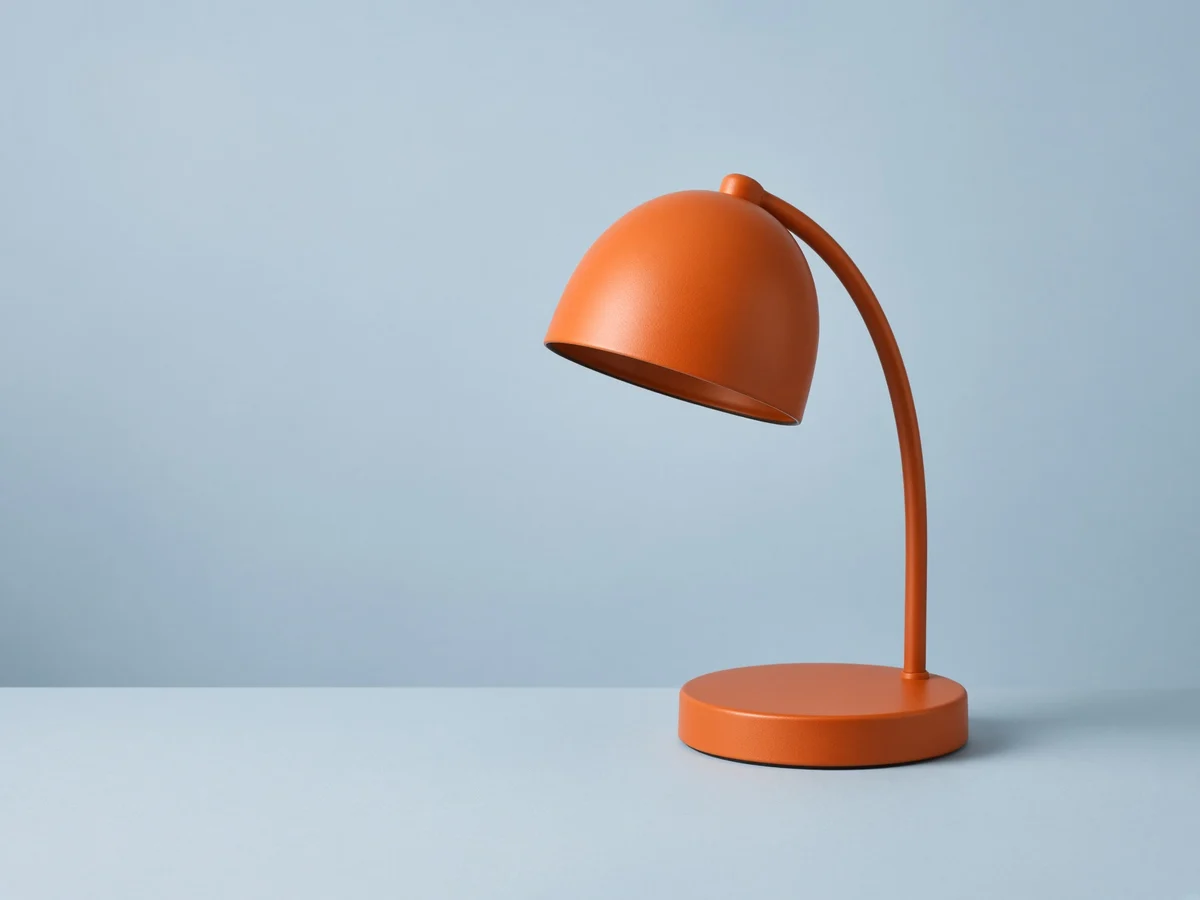
Orange dome desk lamp on a pale blue surface, with empty copy space to its left

A product shot with room to breathe

Build a clean launch image around one object. Leave deliberate space for copy you will add later.

Prompt

Create a studio product photograph of one unbranded orange enamel desk lamp on a pale blue matte tabletop against a matching seamless background. The lamp has a rounded dome shade, a slim curved stem and a circular base. Show the entire lamp in a three-quarter view, positioned in the right half of a horizontal composition. Leave the left third empty for a headline to be added later. Soft window light from the upper left, a believable contact shadow, restrained reflections and subtle material texture. The lamp is switched off. No lettering, logos, extra objects or decorative border.

NIGHT SHIFT poster with bold black type and a cobalt folded-paper ribbon

Two words, one clear hierarchy

Keep a poster brief small enough to proofread. Treat the lettering as something to check, not a guaranteed typesetting result.

Prompt

Design an original portrait-format poster for a fictional late-night design workshop. Use only the exact words NIGHT SHIFT, stacked on two lines in large, clearly separated uppercase lettering. A single cobalt-blue folded-paper ribbon curves beneath the title on a warm off-white background. Strong editorial hierarchy, generous margins, crisp flat shapes and a small soft shadow under the ribbon. No dates, venue, extra words, logos, signatures or border. The title must remain the main visual element.

Extended vs Official: choose your starting point

These are different workflows, not a ranking. Use Extended for a fresh text brief and Official when your own image needs to guide the result.

Extended, Official and Segment / Edit workflow comparison
ModeStart withChoose it for
ExtendedA text prompt; no referencesProduct concepts, characters and imagined scenes.
OfficialText or up to 3 reference imagesReference-led edits and selectable 1K / 2K output.
Segment / EditA usable Segment result and region selectionA targeted change to one part of the source image.

Change one detail.
Keep the rest in mind.

For a new backdrop, choose Official and upload your product photo. For a region edit, first run Segment on a supported completed single-image Grok task or check one uploaded image against the provider cache. An arbitrary upload may not return editable data.

When History offers objects, select one before loading the edit prompt. You need the returned Segment Image ID and an object index or valid normalized box—not the original task ID. Inspect edges and surrounding pixels after the edit.

For a different reference workflow, explore Seedream 5.0 Pro or GPT Image 2.

Prompt

Change the selected desk lamp's orange enamel finish to deep cobalt-blue enamel. Keep its existing dome shade, curved stem, circular base, proportions, position and light direction. Retain the pale blue tabletop and background, the open left margin and the original contact shadow as closely as possible. Do not add text, objects or new decorations. Change the lamp finish only.

Review the result, not just the settings

Proofread lettering and inspect object geometry before publishing. Official's Low and Medium quality options apply to text-only generation; adding references hides that selector. Extended and Region Edit do not offer a selectable 4K tier here. Check the live credit quote and plan options before generating.

Grok Imagine 2.0 questions

Is this the official xAI Grok website?

No. This is the RSW image workspace. Official is the label for the provider route using grok-imagine-image-2.0. Extended and Segment / Edit use the provider's grok-imagine-2.0-ext route. These labels do not make RSW an xAI-owned service.

Why can I not add a reference image in Extended?

Extended generation accepts text only. Choose Official for image-reference editing, with up to three reference images in this workspace. An example button will not remove your current references to force a text-only brief to load.

Why does Segment finish without giving me an editable object?

A completed task is not enough: you need a usable Segment Image ID and selection data. Uploaded-image segmentation checks the provider's cache and may find nothing. A supported completed single-image Grok task is another source option. A task ID is not a Segment Image ID; do not substitute one for the other.

Can I use 4K or a brush to make a precise edit here?

Not in the current Grok controls. Official offers 1K and 2K. Extended has no selectable pixel-resolution tier, and Region Edit has no resolution selector. Region Edit accepts object indexes or normalized box values, not a brush or polygon editor. Check the result for changes outside the intended area.

Does loading a prompt use credits or upload the example image?

No. It only prepares the matching image mode and full prompt, keeping compatible settings. You still review the current quote and choose Generate yourself. Loading is blocked during an upload or submission. A reference-edit brief needs your references, and a region-edit brief needs your own prepared Segment result.

Does this Grok page generate video too?

The modes explained on this page create and edit still images. They are not Grok video-generation controls. Other media tabs in the shared workspace are separate tools.