Seedream 5.0 ProAI Image Generator & Editor

Generate, interactively edit and split images into layers with Seedream 5.0 Pro in one workspace.

Workspace

6 Credits
Model
No file selected

JPG, PNG, WebP. Up to 10 images, max 10MB each.

No reference image uploaded yet.

Inspirations

Editorial Portrait

Editorial Portrait

A cinematic portrait in soft natural light, 85mm lens look, subtle film grain, editorial style.

Product Poster

Product Poster

A premium product poster with dramatic spotlight, clean dark gradient background, high contrast.

History

No history yet. Generate your first task.

A brief. An image. A place to start.

Original Seedream 5.0 Pro examples, generated in RSW AI Studio. Try a prompt and make it your own.

Text to image · 1K · 4:3
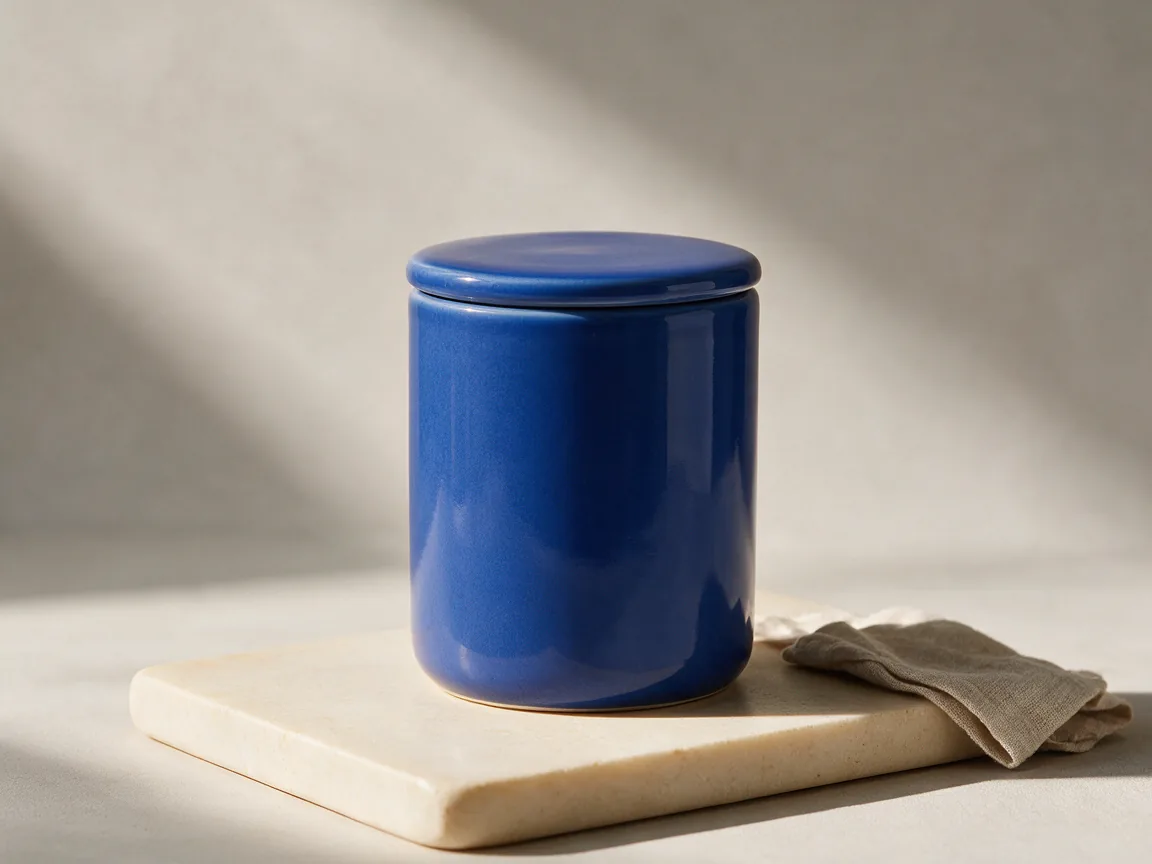
Cobalt-blue ceramic canister on an ivory plinth with soft studio shadows

A product worth a closer look

A specific material, camera angle and light source give a product concept a clear direction.

Read the prompt

Studio product photograph of one unbranded cobalt-blue cylindrical ceramic coffee canister with a fitted flat lid, on a warm ivory stone plinth. Center the canister in a three-quarter view, with a small folded linen cloth beside the plinth. Soft daylight from the upper left, crisp glazed ceramic texture and a believable contact shadow. Pale warm gray seamless background, restrained premium catalog composition, no lettering, logo or watermark.
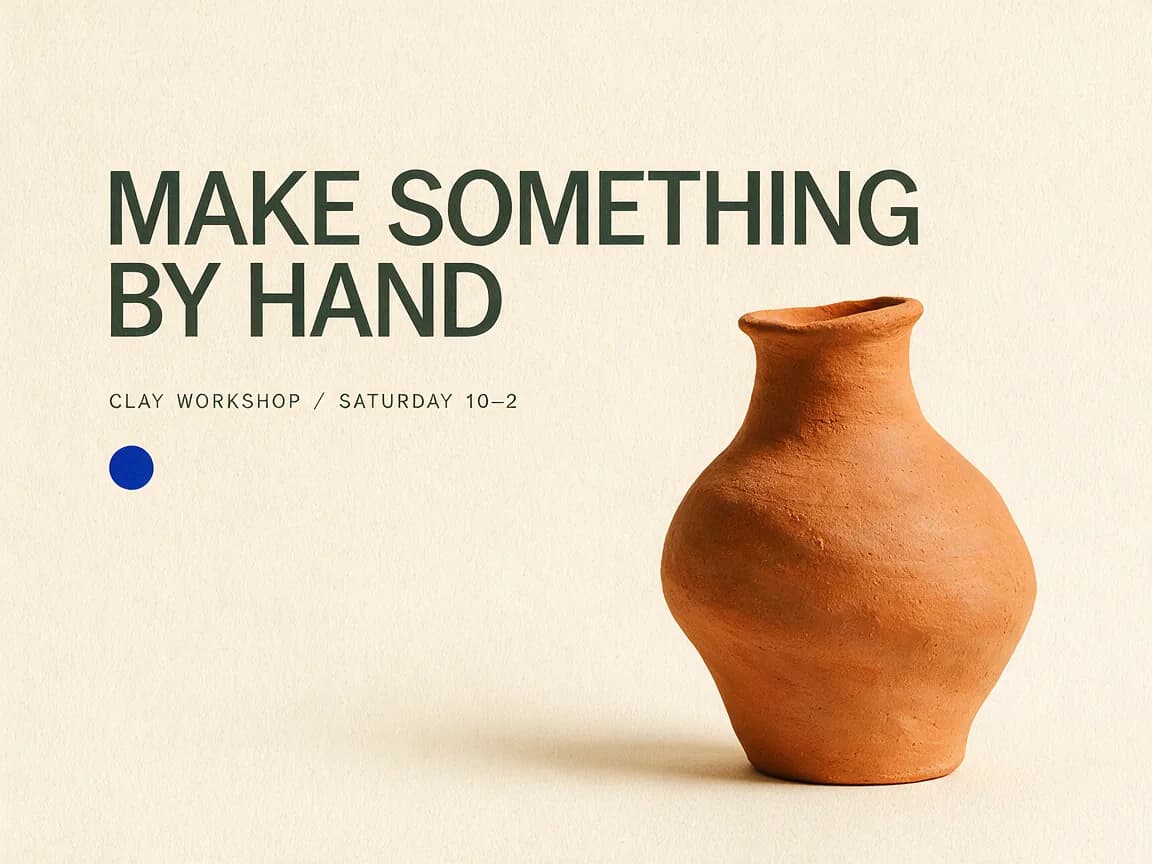
Ceramics workshop poster with a terracotta vase and MAKE SOMETHING BY HAND headline

Type with room to breathe

Put the exact wording in quotes, then describe its hierarchy. Always proofread the output.

Read the prompt

Design a landscape poster for a fictional weekend ceramics studio. Warm ivory paper, a large sculptural terracotta vase on the right, dark forest-green typography on the left. Exact headline on two lines: "MAKE SOMETHING" and "BY HAND". Small supporting line: "CLAY WORKSHOP / SATURDAY 10–2". Strong editorial hierarchy, spacious margins, subtle paper grain, one small cobalt-blue circular accent. Keep every word legible, add no other text, logos or watermark.

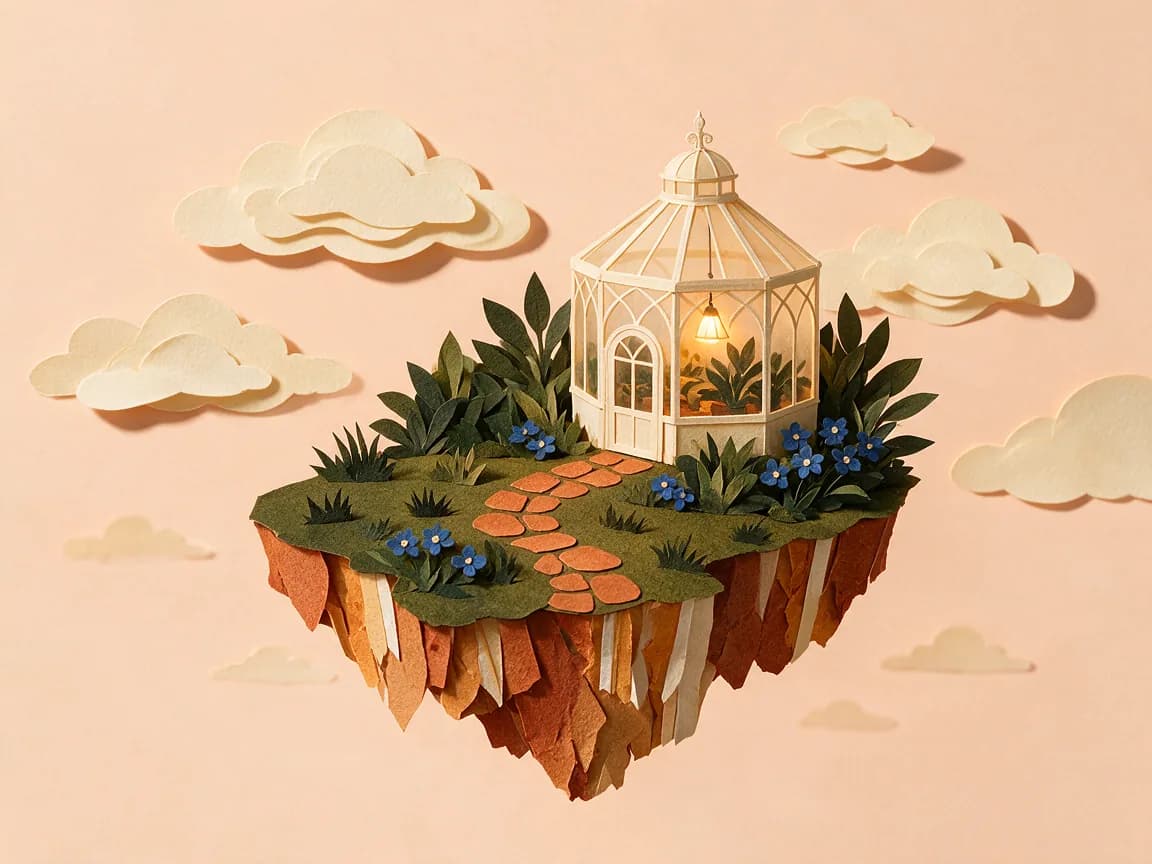
Cut-paper illustration of a tiny greenhouse on a floating garden island

Give an idea its own world

Name the medium and the scene. A small set of visual constraints is easier to refine.

Read the prompt

Create a tactile cut-paper editorial illustration of a tiny glass greenhouse on a floating garden island. Layered cream paper clouds, terracotta paths, deep green leaves and small cobalt-blue flowers. A warm lamp glows inside the greenhouse. Show the island in three-quarter view with generous pale peach space around it. Soft shadows reveal the paper layers and hand-cut edges. Landscape composition, charming but carefully constructed, no text, people, logos or watermark.

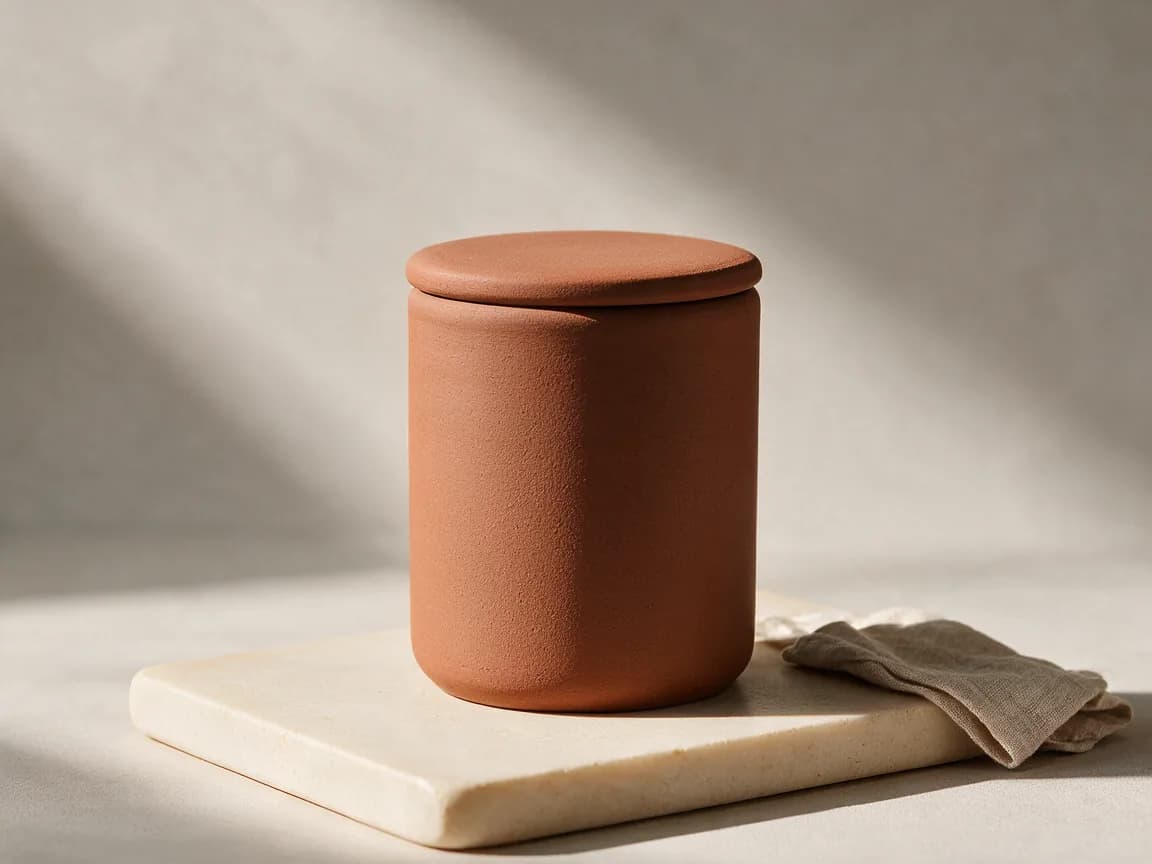
The same ceramic canister edited to a matte terracotta finish on the original plinth
Cobalt-blue ceramic canister on an ivory plinth with soft studio shadows
Move across the image or drag to compare. Keyboard: use the arrow keys. Both images made with Seedream 5.0 Pro.

Reference-image editing

Same product. A different finish.

Generated from the blue-canister reference above, not a separately prompted look-alike. The brief changes the finish while asking to retain the shape, set and lighting. Compare the edges and surface detail yourself.

Read the edit prompt

Edit the uploaded product photograph. Change only the cobalt-blue glaze of the canister and its lid to a matte terracotta ceramic finish. Preserve the exact canister shape, lid geometry, position, camera angle, ivory plinth, folded cloth, background and direction of the light. Keep realistic surface texture and contact shadows. Do not add text, logos, new objects or extra containers.

Add your own product photo in the workspace. This button loads text only; it does not upload a photo or generate automatically.

What is Seedream 5.0 Pro?

Seedream 5.0 Pro is ByteDance’s image generation and editing model. Its official overview emphasizes design layouts, text rendering and interactive edits. Here, those ideas become a practical workflow: write a brief, add references when needed, and inspect the result in History.

Use it for a product concept, an illustrated scene or a poster with a clear reading order. When you already have an image, describe the change instead of rebuilding the whole scene. The workspace also offers dedicated Interactive and Layer Split modes for more specific tasks.

Comparing image tools? GPT Image 2.5 offers Flare and Sunburst in a separate workspace. Try the same brief and references, then compare the details you care about rather than treating either model as a universal winner.

References for generation and editing
10
Modes in one workspace
3
Resolution presets, including 1.5K
1K–2K
Credits for a text-only 1K image
6

Create a scene. Refine a detail. Separate the pieces.

Choose a mode for the task, not just a different visual style. Each has its own input requirements.

Generate / Edit

Text first, references when useful

Start from a written brief, or upload a product, portrait or room photo and describe a change. With several references, identify each one’s role: subject, palette, setting or composition.

Interactive

Tell the model where to work

Upload a reference and choose point, box or drawing guidance in the workspace. Use the requested coordinates or marked image alongside your instruction. Ask for one targeted change and inspect nearby details afterward.

Layer Split

Prepare assets for another editing pass

Upload exactly one source image. The result can include a base image and transparent layer assets. Output counts and sizes vary. Inspect the returned pieces before compositing; this is not an editable-vector or PSD export promise.

How to use Seedream 5.0 Pro

Keep the first brief focused. A useful result is easier to improve than a prompt asking for several unrelated changes at once.

Open the workspace
  1. 01

    Set the brief

    Choose Generate / Edit for a new image or a reference-based edit. Name the subject, composition and lighting. If you upload images, use ones you have permission to work with.

  2. 02

    Match the output to its placement

    Choose an aspect ratio: a square product tile, a portrait poster or a landscape banner. Select 1K, 1.5K or 2K, review references and output format, then check the credit quote on Generate Image.

  3. 03

    Inspect before you publish

    Wait for the task to complete in History, then preview and download. Read every word in a poster. Check object edges, faces and anything you asked to preserve. Refine one instruction at a time.

A better prompt starts with a clearer brief

For a new image: describe the hierarchy

Give the subject a setting, choose a medium, then explain what should draw the eye first. For a poster, quote the exact headline and supporting line separately. Specify their positions and leave enough space around them. For a product, describe the finish and light rather than stacking vague quality adjectives.

The ceramics poster above uses a large headline, one supporting line and one object. Start there before attempting dense copy. Add critical small print in your design editor when exact typesetting matters.

For an edit: separate change from keep

“Make it better” leaves the target unclear. “Change the blue glaze to matte terracotta; keep the lid, camera angle, plinth and lighting” gives the model a specific job. If a location matters, use Interactive controls rather than assuming text alone provides a selection.

ByteDance notes that fine text and editing consistency still have limitations. Review the output at full size, especially when retaining a face, a logo or a product shape is important.

Seedream 5.0 Pro sizes and credits

These are the current standard workspace quotes for one generated image. 1K and 1.5K share a price tier; 2K uses a higher tier. The first reference is included; additional references add to the calculation, which is rounded once for the whole request.

Layer Split uses a separate maximum-output reservation and settles from the returned images and sizes. Always review the button’s quote before submitting. See credit options if you need to top up.

Seedream 5.0 Pro generation credits, without or with one reference
ResolutionText only1 reference
1K6 credits6 credits
1.5K6 credits6 credits
2K12 credits12 credits

PNG or JPEG output. Resolution is a preset; exact dimensions depend on the selected aspect ratio. This page does not offer 4K.

Seedream 5.0 Pro questions, answered

What is the difference between Seedream 5.0 Pro and Lite?

Pro and Lite are separate models, not quality switches on this page. This workspace is for Pro and offers Generate / Edit, Interactive and Layer Split. Its resolution presets are 1K, 1.5K and 2K. Features advertised for Lite or for another platform should not be assumed to be available here.

Can I use Seedream 5.0 Pro for free?

Generation uses RSW AI Studio credits. If your account has enough available free credits, you can use them; otherwise you will need more credits before submitting. The Generate button shows the quote. Browsing examples and loading their prompts does not start a paid task.

Does this Seedream workspace support 4K?

No. Choose 1K, 1.5K or 2K here. The aspect ratio determines the shape of the image, so a resolution label is not an exact width-and-height promise. Start with the canvas your final placement needs.

How many reference images can I upload?

Generate / Edit and Interactive accept up to 10 JPG, PNG or WebP references, at most 10MB each. Explain which reference supplies the subject, layout or material. Layer Split requires exactly one source image.

How do I change just one part of a photo?

For a simple change, upload a reference in Generate / Edit and state what should change and what must stay. For a spatially targeted change, choose Interactive and supply the point, box or drawing information requested by the controls. Loading an example prompt does not supply coordinates. Inspect the surrounding details afterward; preservation is not a pixel-perfect guarantee.

Can I make a transparent image?

The Transparent setting in this workspace requires PNG output and exactly one reference image with an alpha-capable format. It is not an unrestricted text-to-image transparency switch. Layer Split is a separate workflow that can return transparent layer assets from one source image.

How does Layer Split pricing work?

Layer Split reserves credits for the maximum possible output, then settles using the returned images and their sizes. The base image also counts as an output. The final layer count varies; this is not a promise of 17 useful layers or a native Photoshop file. Check the reservation before generating.

Do I need a ByteDance account or an API key?

No separate ByteDance account or personal API key is required for this workspace. RSW AI Studio provides its own account, credit balance and generation history.

Can I use the images in client work?

Use reference images you have permission to upload, and review the applicable service terms and third-party rights before publishing. Inspect faces, logos, small text and product details. An AI-generated result is not a guarantee of accuracy, exclusivity or clearance for every use.

Different tools expose different controls. Keep the brief and references consistent when comparing.